

We try to keep our product simple and easy to use. One way we do this is by guiding new installers through the setup process. Below is the new setup process with guided instructions.
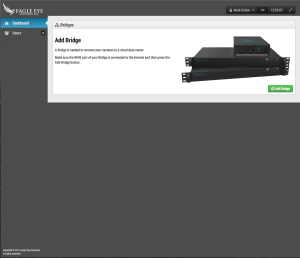
When first logging in, you will be prompted to add a bridge.
While the bridge is looking for cameras, it provides the connection diagram from the QuickStart guide.
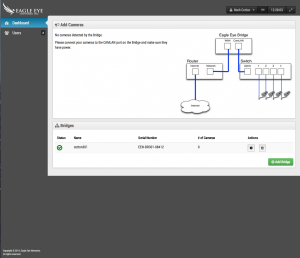
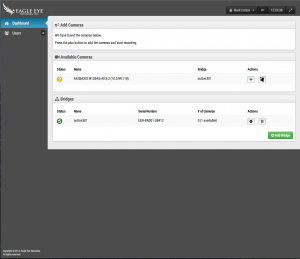
Once a camera is found, it explains how to add a camera.
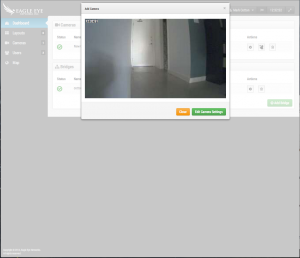
When a camera is added, it shows a preview and allows you to configure settings.
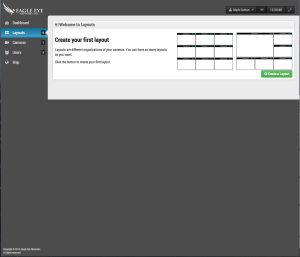
Once a camera is added, Layouts appears as an option on the Left side menu. Clicking on Layouts prompts you to create a new layout.
Creating a new layout automatically brings up the add camera dialog. Select your desired cameras.
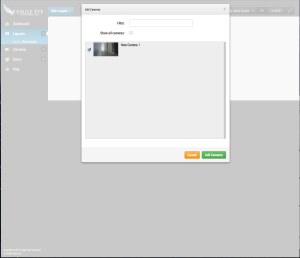
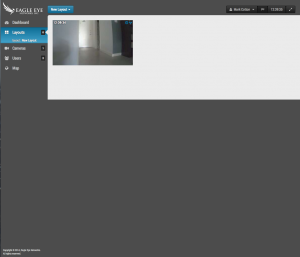
The end result is a much simpler process for adding a bridge, camera and layout.
あなたに興味があるかもしれない他の投稿