
In part 1, we showed how to mask out a motion zone to ignore motion. In this post we are going to show how to create email alerts.
We will be setting up email alerts on my front door. I am interested on getting an email notification whenever someone enters or leaves. This could be me, my wife, the pizza delivery guy, etc.
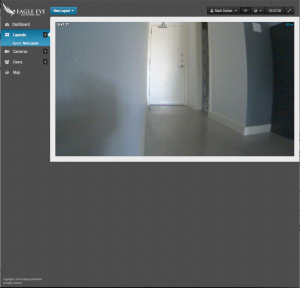
This is the starting image.
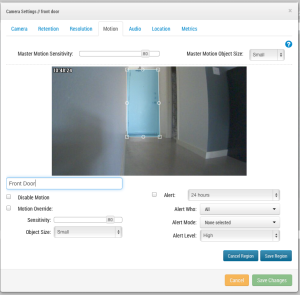
Here I have opened camera settings and gone to the ‘Motion’ tab. I have also created a new region and placed it over the door.
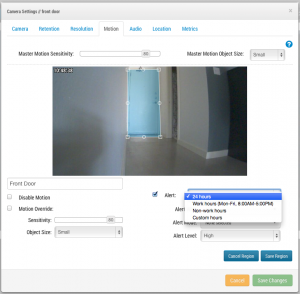
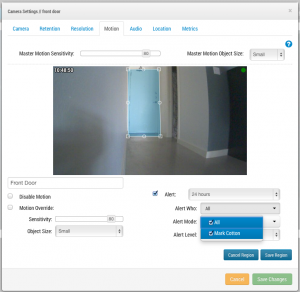
I have checked the alert checkbox. Here I am selecting the time range in which I would like this alert to be active.
Here I am selecting which users I would like to be alerted.
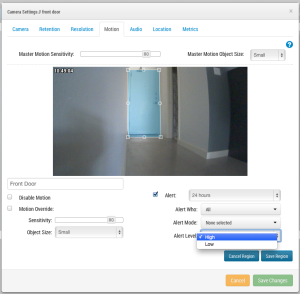
Lastly, I am selecting if this should be considered a ‘High’ or ‘Low’ alert. Each user can choose in their profile if they would like to notified on ‘Low’ and/or ‘High’ alerts.
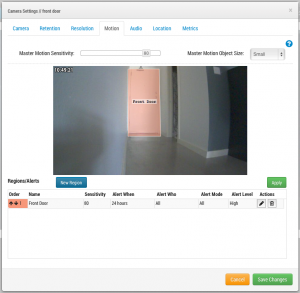
After saving the region and pressing ‘Apply’. The motion zone is highlighted on top of the preview image and the summary is listed.
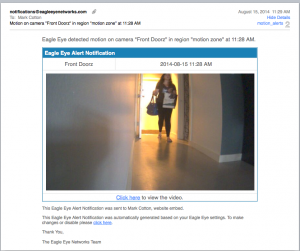
Finally, this is an example of the email that is sent to me.
あなたに興味があるかもしれない他の投稿