
Eagle Eye Networks

Sistema de câmeras de segurança

Tudo o que você precisa saber sobre como implantar, gerenciar e atualizar seu sistema de câmeras de segurança com o Eagle Eye Cloud VMS.

TwoFactor-FI

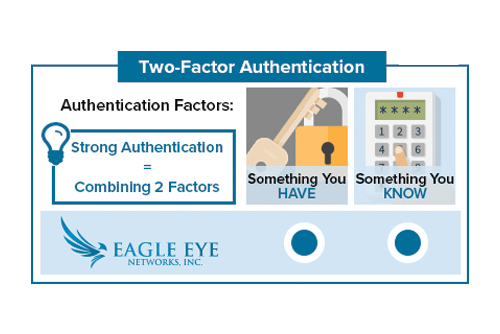
Two Factor Authentication

With Two Factor Authentication, an Eagle Eye Networks account can only be accessed on a trusted device. When a user wants to log into a new device for the first time, the user will need to provide two pieces of information – a password and a four-digit security code. The


Read More »
helpfiles-FI

Work Smarter with Help Files

Work smarter! Take advantage of the Help Files located throughout the Eagle Eye web interface. When you see a blue circle with a question mark, you can click for more information.  The Help Files not only explain the options and features for the area they are found, but they also

Read More »
SS-Logo-FI

Swift Sensors Integration

Eagle Eye Networks has recently partnered with Swift Sensors to amplify the experience for the customers of both companies’ cloud-based monitoring systems. The Swift Sensors Enhanced Video Notification places up to four images from multiple cameras in an email notification corresponding to the exact time of the notification event. Upon

Read More »
Local-Display-FI

Local Display via Browser Usage

Local Display A user with permission “Administrator” or “Edit All and Add” is required to enable Local Display. The user must sign into the Eagle Eye Networks Cloud, and from the Dashboard, click the gear icon next to the bridge to open Bridge Settings. Then, select the Local Display tab.

Read More »
Local-Display-FI

Local Display via Browser

Eagle Eye’s newest feature enables customers to view live video on their local area network without the need for cloud connectivity. This feature, named Local Display via Browser, enables users to sign directly into their local Bridge/CMVR instead of the Eagle Eye Cloud. Even without internet connectivity, viewing video is easy

Read More »
videonotespsd

Searchable Video Clip Notes

When saving a video clip, notes can be entered by the user that are searchable from the Notifications page. Notes can also be added, updated and changed, on the Notifications page within the retention period. Previously, to add notes to a downloaded clip, the video would have to be requested

Read More »
videonotespsd

Searchable Video Clip Notes Usage

Downloading and Download Notifications Video can be requested for downloading from the history browser. When a video is ready, it will appear under the notifications flag in the top right of the web interface. It will also appear on Notifications page with a link for downloading as well as a

Read More »
PoE-FI

Eagle Eye 303 & 403 Bridges now include managed PoE ports

Eagle Eye Networks has relaunched its rack-mountable 303 & 403 Bridges with new capabilities. The 303 & 403 Bridges now include managed PoE ports. Cameras can be remotely restarted within the camera settings tab of the Eagle Eye user interface. Any individual port or all ports can be power cycled.

Read More »
305-angeled-labels

New Eagle Eye Bridge 305/305s

The Eagle Eye Bridge 305/305s is a ruggedized appliance which includes four managed PoE ports. Cameras can be remotely restarted within the camera settings tab of the Eagle Eye user interface. Any individual port or all ports can be power cycled. Eagle Eye managed switches appear on the dashboard for

Read More »
reboot-blog-image

Integrated Managed Switches Bridge PoE Ports

Eagle Eye launched a new feature within the Eagle Eye VMS that allows users to remotely power cycle cameras connected to ports on Eagle Eye managed switches and bridges. Any individual port or all ports can be power cycled. Eagle Eye managed bridges and switches appear in the Eagle Eye

Read More »
Verizon-FI

Verizon Modem Integration

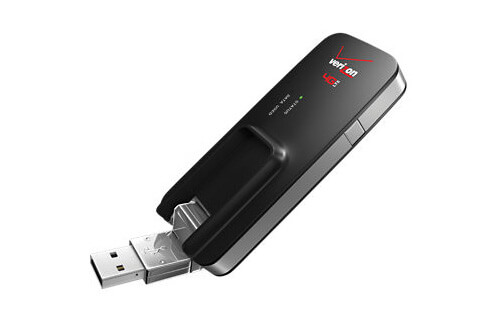
Eagle Eye Networks is now integrated with the Verizon MiFi 4G LTE Global USB Modem U620L. This means that any Eagle Eye Bridge or Eagle Eye Cloud Managed Video Recorder (CMVR) can be connected to the Eagle Eye Cloud Data Center using only a cellular connection. The Verizon MiFi cellular

Read More »
Bandwidth

Enhanced Transmit Modes

Eagle Eye Networks has recently added three new bandwidth modes for users to choose from: Percentage of Available – You can now adjust the transmit rate for the Bridge to be set to a percentage of available bandwidth. This affects the default transmit rate, as well as the scheduled transmit

Read More »
camera-settings-from-layout

Accessing Camera Settings

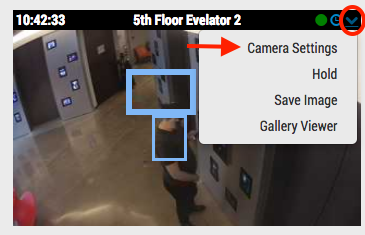
With the proper permissions, camera settings can be accessed from the dashboard or from layout view. From the dashboard, click the gear icon to open the cameras settings. From a layout, click the dropdown in the upper right corner over the preview image and select settings. Related posts:  Adjusting Motion

Read More »
motion-settings-overview

Motion Settings Overview

The Eagle Eye Networks VMS records two video streams from each camera: preview video and full video. Preview video is typically a lower frame rate and resolution so that no matter the motion settings, there is a recording of everything. At default, preview video is transmitted in real time to the

Read More »
Adjusting Motion Settings

Adjusting Motion Settings

Regions and Alerts The Eagle Eye Networks VMS allows an unlimited amount of regions and alerts per camera. These can be added by opening camera settings and selecting the motion tab. In this example, a region named Entry-Exit is shown with separate motion sensitivity from the overall motion sensitivity of

Read More »